
Live results TV screen guide
How To Show Live Results On A Big TV Screen
Got a large TV at your event? Show our live TV results module on it and the crowd can watch the latest finishers, the top 10 male and female and the category winners, updating by itself as people cross the line.
Got a large TV at your event? Put our live TV results screen on it and everyone at the finish can watch the results build up as riders and runners cross the line. It updates by itself, so nobody has to touch it.
Make an enquiryWhy show live race results on a big screen?
A live race results screen turns the finish area into the heart of your event. Instead of crowding round a printed sheet or queueing at a results tent, runners, riders, friends and family can look up at a large TV and see the latest finishers, the top 10 male and female, and the category winners as they happen. It is one of the easiest ways to make a race feel professional, and it takes very little effort on the day.
- Atmosphere: the crowd watches the results build up and cheers when a favourite or a club mate appears.
- Fewer questions: people can see their own time and position for themselves, so marshals and the timing team are not asked "what was my time?" all day.
- Keeps people at your event: spectators and finishers hang around to see the results, which is good for refreshments, sponsors, prize giving and the sense of occasion.
- Always up to date: there is no printing, no waiting and no typing results in by hand. The screen reads the same live results as your public results page.
Our live TV results module is a single web page that you open on a large TV, a monitor or a laptop connected to a projector. It works for any race timed with our timing system or free timing app, from small club races to big road events.
Which events is the TV results screen for?
Any event where people finish and want to see how they got on. It is popular with:
- Road races: 5k, 10k, 10 mile, half marathon and marathon.
- Fun runs and charity runs: where friends and family wait at the finish.
- Cross country and trail races: including leagues and series.
- Triathlons, duathlons and multi-sport events.
- Cycling events: sportives, time trials and cycle races.
- School, club and community sports days.
It shows one race or several races from the same event, so a 5k and a 10k, or a junior and an adult race, can run on the same screen.
1. What you need to show live results on a TV
The TV screen is a web page. If a screen can open a web page, it can show your results. The results come straight from your timing, so there is nothing to type in or upload on the day.
A large screen
Any TV or monitor, as big as you can fit. It is built for 16:9 widescreen and designed to be read from a distance.
Something with a browser
A laptop plugged in by HDMI is the simplest. A smart TV, a streaming stick or a tablet that can cast also work.
An internet connection
Wi-Fi, or a phone hotspot. The screen asks for fresh results every 20 seconds, so it only needs a normal connection.
2. Watch it work (animation)
This is the screen as the crowd sees it. It cycles through its slides on its own, and every few seconds a new finisher crosses the line, so you can watch the latest finishers, the positions and the counts change. The names and times are made up.
The real screen is full colour, fills the whole TV and is easy to read from across the finish area.
3. What the screen shows
The screen runs a loop of three slides for every race in your event. Each slide stays up for 12 seconds, and the numbers refresh every 20 seconds, so the slide you are looking at always has the latest results.
| Slide | What the crowd sees |
|---|---|
| Latest finishers | The 20 most recent finishers across two panels, each with their overall position, race number, name, club, age category, pace and finish time. |
| Top 10 male and Top 10 female | The leaders side by side, with gold, silver and bronze for the first three. If the race has no gender information it shows one Top 10 overall instead. |
| Category winners | The leader of each age category so far. |
- The event name, the race name, a live clock and the finisher count stay on screen all the time.
- Two or more races in one event? The loop goes through each race in turn. Only want one? See the options in section 4.
- Withdrawn, did-not-finish and did-not-start entries never appear, only runners and riders who have finished.
4. Setting it up
- Get your screen address. We give you the web address of your TV screen. It is tied to your timing account, so it always shows your event.
- Open it on the screen. On a laptop connected to the TV, open the address in a browser. On a smart TV or streaming stick, use its browser or cast the page from a phone or tablet.
- Go full screen. On a laptop press F11. The page hides the mouse pointer and has no buttons to click, so it looks like a proper results board.
- Stop the screen sleeping. Turn off the laptop's sleep, screen saver and notifications so the results stay up all day.
- Leave it running. It finds today's event for your timing account and refreshes itself. Before the first finisher it simply shows no finishers yet, and the lists fill as people finish.
You can change how the screen behaves by adding options to the end of the address:
| Add this | What it does |
|---|---|
| &race=10k | Show one race only, using the race name exactly as it is in your event. Handy when you have a different screen for each race. |
| &secs=8 | Seconds each slide stays up. The default is 12, and you can choose anything from 5 to 60. |
| &date=dd-mm-yyyy | Show the event from another day. Use it to test the screen before race day. |
5. Tips for the big screen
- Put it where people wait. Near the finish funnel, the baggage tent or the refreshments is ideal. People check it as soon as they have their breath back.
- Bigger is better, and shade helps. The text is sized to be read from across the area, but a TV in direct sun is hard to read. Face it away from the sun or put it under cover.
- Mains power and a good connection. Plug in the laptop and use Wi-Fi or a phone hotspot with a decent signal. If the connection drops for a moment the screen carries on with what it has and updates when it is back.
- Several screens? Open the same address on each. Use &race= to give each race its own screen, or offset them with different &secs= values so they show different slides.
- Marshal's check. If a result looks wrong, correct it in your timing account and the screen shows the fix within 20 seconds.
- Add a human touch. A commentator or announcer can use the same results to call out the top finishers and category winners as they appear.
6. Let runners look up their own result
The big screen is for everyone. If you also want people to find their own result, we have two more screens that work in the same way:
- Touch screen kiosk. An iPad or touch screen on a stand. A runner taps their race number and sees their finish time, positions and pace. It clears itself after a short time, so the next person never sees someone else's result.
- TV keypad screen. A PC or TV where the runner types their race number on a keyboard, and sees a big result card with their finish time, position badge and splits. Top three finishers even get confetti.
Ask us for the addresses along with your screen address.
7. The iPad kiosk screen
Put an iPad or touch screen on a stand near the finish and runners can find their own result in seconds. They tap their race number on a big keypad, press Go, and see their finish time, overall position, gender and age category positions and pace. It is a great partner for the big TV: the TV is for everyone, the kiosk is for "what was my time?".

Big keys that are easy to hit, even with gloves or cold hands.
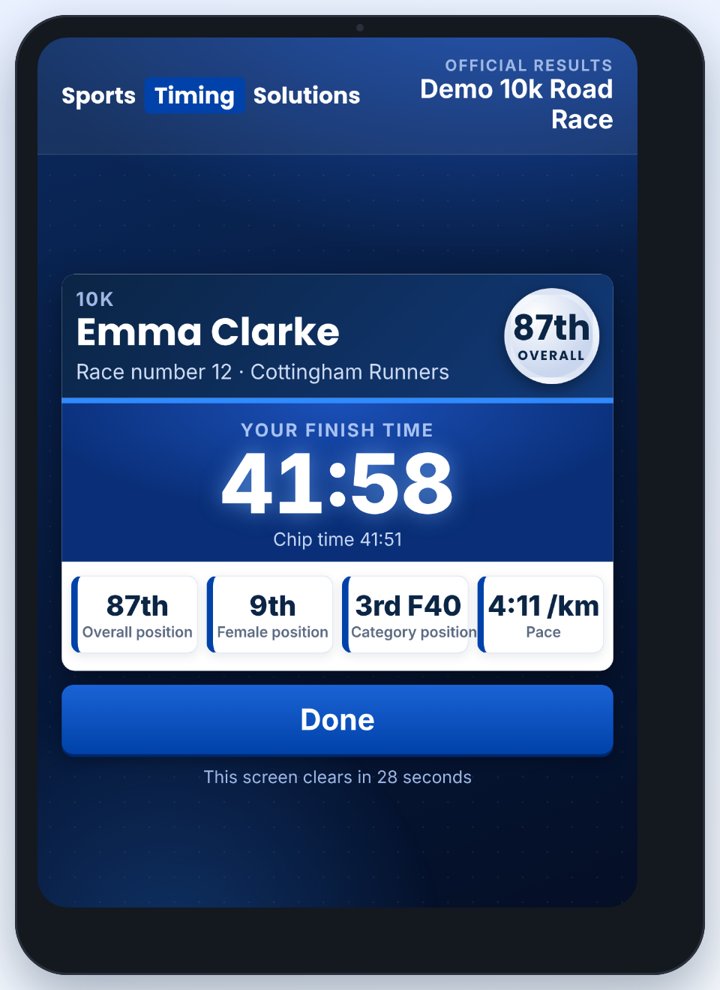
Finish time, positions and pace, with a position badge.
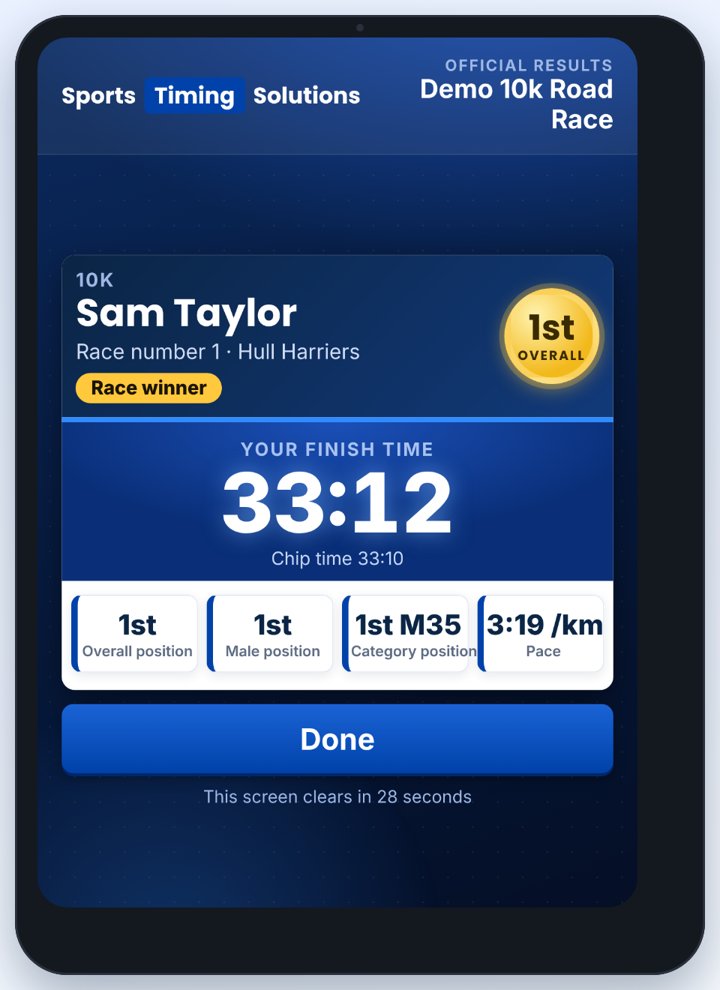
The first three finishers get a gold, silver or bronze badge, and the winner is marked.
How the kiosk works
- It finds today's event for you. Open the kiosk address on the iPad and it shows your event, with no setup on the day.
- It clears itself. After a short quiet spell the screen goes back to the keypad, so the next runner never sees someone else's result. The default is 30 seconds, and you can change it from 10 to 120 seconds by adding &idle=45 (for example) to the address.
- Several races, one number? If the same race number is used in two races, the kiosk asks "Which race were you in?" and shows the right result.
- Runners still out on the course see a friendly "Running" message, and their time appears once they cross the line.
- Only finishers are shown. Withdrawn, did-not-finish and did-not-start entries are never displayed.
Setting up an iPad kiosk
- Open the kiosk address in Safari on the iPad (ask us for it with your screen address).
- Add it to the Home Screen with the Share button, so it opens full screen with no browser bars.
- Lock the iPad to the page. Turn on Guided Access (Settings, Accessibility) so runners cannot leave the kiosk, then start it with a triple-click of the side button.
- Stop it sleeping. Set Auto-Lock to Never and keep the iPad plugged in on its stand.
- Place it where people finish. A table or stand near the finish funnel works well, with the iPad at a comfortable height for adults and children.
Frequently asked questions
What is a live results TV screen?
It is a web page that shows your race results on a large TV or monitor while the event is happening. It cycles through the latest finishers, the top 10 male and female, and category winners, and it updates by itself.
What do I need to show live race results on a TV?
A large screen, something that can open a web page (a laptop connected by HDMI is the simplest, or a smart TV, streaming stick or tablet that can cast), and an internet connection such as Wi-Fi or a phone hotspot. There is nothing to install.
How often do the results update?
The screen asks for fresh results every 20 seconds, and each slide stays on screen for 12 seconds by default. You can change the slide time from 5 to 60 seconds.
Can I show only one race on the screen?
Yes. Add the race name to the screen address and it shows that race only. This is handy when a big event has several races and you want a different screen for each.
Does it work when an event has more than one race or distance?
Yes. By default the screen goes through every race in your event in turn, showing each race's latest finishers, leaders and category winners.
Can I test the TV results screen before race day?
Yes. Show the event from another day, so you can check the cable, the screen size, the Wi-Fi and how easy it is to read from where the crowd will stand.
What happens if the internet connection drops?
The screen keeps showing the last results it received and carries on updating as soon as the connection is back.
Can runners look up their own result as well?
Yes. As well as the big screen, runners can use the public results page on their phones, and we also have a touch screen kiosk and a keypad screen where a runner enters their race number to see their own finish time, positions and pace.
Is the TV results screen only for events timed by Sports Timing Solutions?
The screen shows results from our timing system, so it is for events timed with our timing app or timed by us. If you are not sure, make an enquiry and we will be happy to help.
Does the screen show runners who did not finish?
No. Only people who have finished appear on the screen. Withdrawn, did-not-finish and did-not-start entries are never shown.
8. Summary
- One web page: open it on any TV, or a laptop connected to one, and go full screen.
- Hands off: it finds today's event, cycles through the slides and refreshes every 20 seconds by itself.
- Lots to look at: latest finishers, top 10 male and female and category winners.
- Easy to try: use the date option the day before to test it with an earlier event.
Cross the line, and the crowd sees it on the big screen within seconds.
More timing guides
- How To Time A Cycling Time Trial
- How To Time A Triathlon
- How To Time A HYROX-Style Event
- How To Use Our Free Timing App (marshal guide)
Want a big screen results display at your event? Make an enquiry and we will be happy to help.